How to Compress and Resize Images for the Web Without Losing Quality
Table of Contents
How to Compress and Resize Images for the Web Without Losing Quality

Photo: Pexels
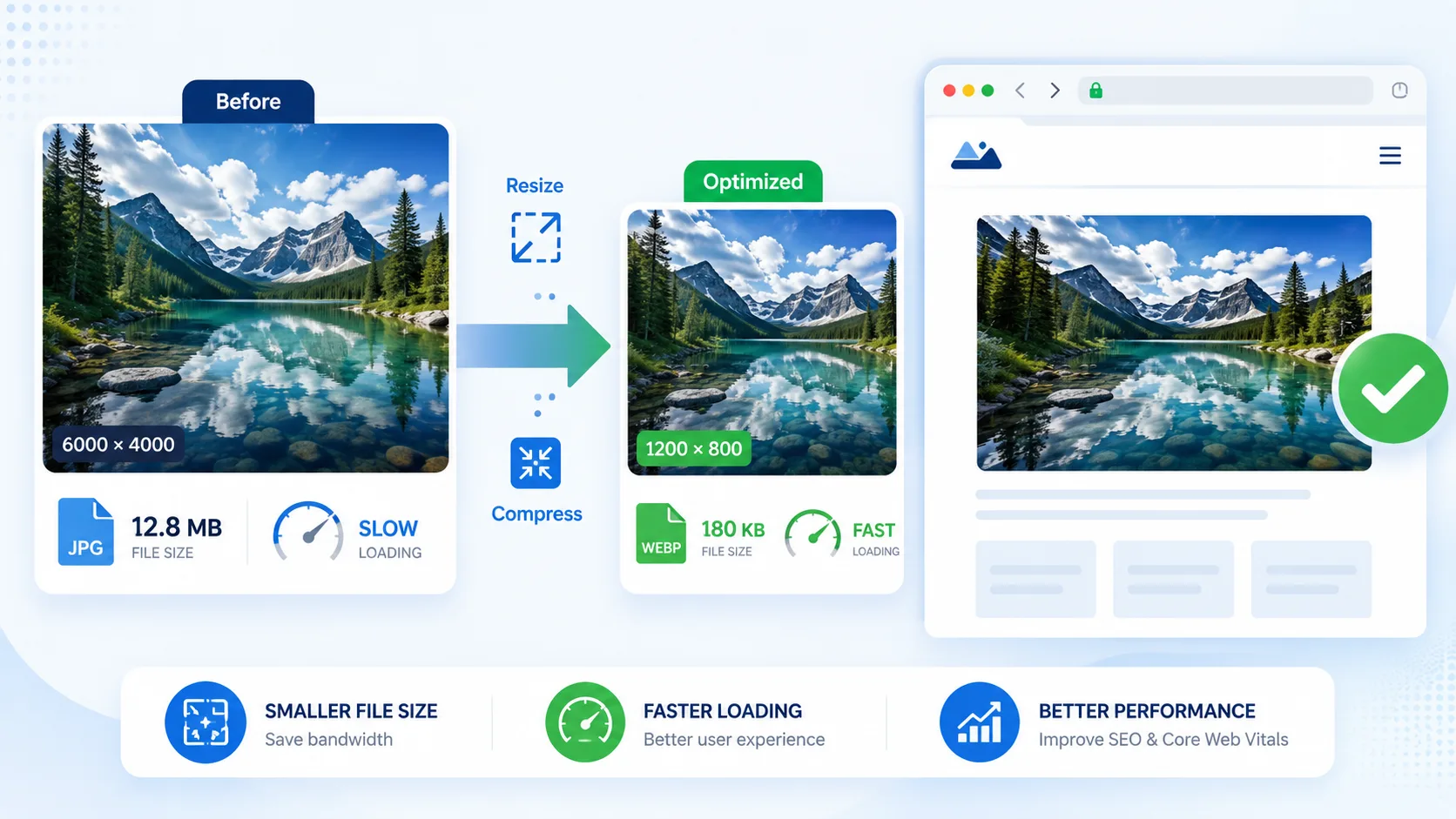
A modern phone camera produces 12–48 megapixel photos measured in megabytes; a blog column is about 800 pixels wide and needs a file measured in kilobytes. Closing that gap is a three-step workflow — resize to the display dimensions, compress to a sensible quality level, and serve a modern format. Done in the right order, the output is visually identical to the original at a tenth of the size or less. Done in the wrong order (or skipped), oversized images become the single biggest drag on your page's loading performance and the most common reason a Core Web Vitals report fails.
Resize first, compress second, convert format third. Scaling a 4,000 px photo down to the 800–1,600 px it will actually display at removes more bytes than any compression setting ever could. Google calls a page "good" when Largest Contentful Paint is ≤2.5s (web.dev), and the LCP element is very often the hero image. Most photos survive JPG/WebP quality 60–80 with zero visible difference at normal viewing size. Do the whole pipeline for free, in your browser, with our image resizer → image compressor → WebP converter.
Why Does Image Size Matter So Much for Page Speed?
Because images are usually the heaviest thing on a page and the thing visitors are waiting to see. Google's Core Web Vitals measure exactly that wait: Largest Contentful Paint (LCP) — the time until the biggest visible element renders — should be 2.5 seconds or less, and the LCP element on most pages is an image (web.dev, Core Web Vitals). Ship a 4 MB hero photo and mobile users on a mid-range connection stare at blank space while it downloads. HTTP Archive's own crawl data has repeatedly found images to be the single largest byte category on the median web page — larger than JavaScript, CSS, and fonts combined.
Oversized images hurt all three metrics: the download delays LCP, decoding megapixels on the main thread worsens interactivity (INP), and images without reserved dimensions cause layout shift (CLS). One workflow fixes the first two; adding width and height attributes (or an aspect-ratio in CSS) fixes the third.
Compressing vs Resizing: What's the Difference?
Resizing changes how many pixels the image contains; compressing changes how many bytes each pixel costs to store. They multiply together, which is why the order matters: a 4,000×3,000 photo has 12 million pixels, while the 800×600 version that actually fits your blog column has 480,000 — a 25× reduction before compression even starts.
People routinely try to fix a huge image with compression alone, forcing quality down to ugly levels while still serving five times more pixels than any screen will display. The correct mental model:
- Resize = match the pixel dimensions to the largest size the image will ever display.
- Compress = squeeze the remaining pixels to the lowest quality setting that still looks clean.
- Convert = store the result in a format with better compression math (WebP is 25–34% smaller than comparable JPEG per Google's compression study).
Lossy vs Lossless Compression: Which Should You Use?
Every compressor makes this choice, whether or not it shows you the setting. Lossy compression (standard JPG, WebP quality mode) permanently discards pixel data your eye is unlikely to miss — this is where almost all of the file-size saving comes from. Lossless compression (PNG, WebP lossless mode) only reorganises the data more efficiently; nothing is discarded, but the savings are far smaller, typically 10–20% versus 60–90% for lossy.
| Content type | Recommended mode | Typical size reduction |
|---|---|---|
| Photographs (people, products, landscapes) | Lossy (JPG or WebP quality 65–80) | 70–90% smaller than the camera original |
| Screenshots and UI graphics | Lossless PNG or lossless WebP | 10–30% smaller, zero quality loss |
| Product cutouts with transparency | Lossless PNG or lossy WebP with alpha | 20–40% smaller than an uncompressed PNG |
| Line art, logos, flat-color icons | Lossless PNG (or SVG if it's vector) | Varies; SVG is often 90%+ smaller than a rasterised equivalent |
Mixing the two up is the single most common mistake: running a screenshot through a lossy JPG compressor blurs text and UI edges permanently, while running a photograph through lossless PNG wastes bandwidth on detail nobody will see. For the full breakdown of when each file format wins, see our PNG vs JPG vs WebP guide.
What Size Should Images Be for Web, Email and Social?
Size to the rendered width, doubled if you want to stay sharp on high-density ("Retina") screens, which pack 2–3 device pixels into every CSS pixel. A hero image displayed 800 px wide is best served at 1,600 px. Practical targets:
| Use case | Longest side | Realistic file size after compression |
|---|---|---|
| Full-width hero image | 1,600–2,000 px | 150–400 KB |
| In-article / blog image | 800–1,200 px | 60–200 KB |
| Thumbnail / card | 400–600 px | 15–50 KB |
| Email attachment set | 1,200–1,600 px | < 1 MB total (many mail servers cap at 25 MB) |
| Social profile / post | Per platform, ~1,080–1,200 px | Platforms re-compress on upload anyway |
Two cautions. Never enlarge: upscaling invents pixels and produces soft, smeared results — always start from the biggest original you have. And crop before resizing when the composition needs it, with the crop tool, so you're not paying pixels for content you'll trim anyway. Marketplace listings have their own dimension rules — our product photo guide covers Amazon, eBay and Etsy specifically.
How Much Can You Compress Before Quality Visibly Drops?
Further than most people expect. JPEG and WebP quality scales are not percentages of "image goodness" — the top of the scale spends enormous bytes on differences no one can see. Most photographs survive quality 60–80 with no visible change at normal viewing size; even Google's Squoosh tool defaults to quality 75 for JPEG output. The visible-damage zone typically starts below 50–60, showing up first as blockiness in smooth gradients (skies, skin) and ringing around sharp edges.
A reliable way to find your floor:
- Export at quality 80, then 60, then 40 with the image compressor.
- Compare each against the original at 100% zoom — look at gradients and edges, not the whole image.
- Pick the lowest setting where you can't tell the difference, then step one notch up for safety.
Content type changes the answer: photographs compress beautifully; screenshots and graphics with text do not — for those, use PNG (or lossless WebP) instead, as covered in our format comparison guide. And transparent cutouts from the background remover must stay in a transparency-capable format — flattening to JPG throws the alpha channel away.
Zoom in on the areas a compressor damages first — faces, skies, and any smooth colour gradient — not the busy, high-detail parts of the photo. Busy areas hide compression artefacts almost completely; smooth areas expose them instantly. If a gradient still looks clean at quality 60, the rest of the image is almost certainly fine too, and you can safely push the setting lower.
A Real-World Before/After: 6 MB Photo to 150 KB Web Image
Here's what the full pipeline looks like on an actual camera file — a 24-megapixel product photo straight off a mirrorless camera, destined for an 800 px-wide blog image:
| Stage | Dimensions | Format | File size | Cumulative reduction |
|---|---|---|---|---|
| Camera original | 6,000 × 4,000 px | JPG (quality 100) | 6.1 MB | — |
| After crop | 5,200 × 3,470 px | JPG | 4.6 MB | 25% smaller |
| After resize to 2× display width | 1,600 × 1,067 px | JPG | 820 KB | 87% smaller |
| After compression (quality 75) | 1,600 × 1,067 px | JPG | 210 KB | 97% smaller |
| After WebP conversion | 1,600 × 1,067 px | WebP (quality 75) | 148 KB | 97.6% smaller |
The resize step alone did most of the work — dropping from 4.6 MB to 820 KB before a single compression setting was touched. Compression and format conversion then trimmed the remaining fat. This is the order that matters: resize → compress → convert, every time, and the free resizer, compressor, and WebP converter chain together in under a minute.
Compressing Images for WordPress, Shopify, and Next.js Sites
The workflow is identical everywhere, but where you apply it differs by platform:
- WordPress: upload pre-resized, pre-compressed images rather than relying entirely on a plugin — plugins re-compress on upload, but they can't undo an oversized original that was never resized first.
- Shopify: product photos are auto-resized by Shopify's CDN at request time, but the original you upload still determines maximum quality and upload speed in the admin — upload a reasonably sized master (2,000–2,500 px), not a 6,000 px camera file.
- Next.js / custom sites: the framework's
<Image>component handles responsive sizing and format negotiation at build or request time, but it still starts from whatever source file you commit — pre-optimising the source keeps build times and storage costs down.
In every case, pre-processing with a resizer and compressor before upload reduces storage costs, speeds up admin/CMS load times, and gives the platform's own optimisation pipeline less work to do.
The Complete Workflow, Start to Finish
For a typical "camera photo → website" trip, the whole pipeline is four browser tools and under two minutes:
- Convert the capture format if needed. iPhone HEIC files → HEIC to JPG.
- Crop to the final composition. Crop tool, or the full image editor for rotate/annotate work.
- Resize to 2× display width. Image resizer — e.g. 1,600 px for an 800 px column.
- Compress and convert. Compressor at quality ~70–80, or straight to WebP via JPG→WebP.
Everything runs client-side in your browser — files aren't uploaded to a server, and there are no watermarks or daily limits. The full toolbox lives at image tools.
Choosing a Compression Quality Setting by Content Type
"Quality 75" doesn't mean the same thing for every image — content type changes how forgiving compression is. Use this as a starting point, then verify visually at 100% zoom:
| Content type | Starting quality (JPG/WebP) | Why |
|---|---|---|
| Portrait / people photography | 75–85 | Skin tones show blockiness earlier than other content |
| Landscape / scenery | 65–75 | Natural texture hides artefacts well |
| Product photography (plain background) | 75–85 | Flat backgrounds reveal banding at low quality |
| Screenshots with text | Use lossless PNG instead | JPG ringing makes small text blurry |
| Textures, patterns, busy scenes | 55–65 | High-frequency detail masks compression loss |
These are starting points, not fixed rules — always do the visual A/B check described above before locking in a site-wide default.
Batch-Processing Many Images at Once
Photographing a product catalogue, a real-estate listing, or an event gallery means resizing and compressing dozens or hundreds of files identically rather than one at a time. The same three-step order still applies, just at scale:
- Standardise dimensions first. Resize the whole batch to one target width so every image in the set behaves the same way in your CMS's grid or gallery layout.
- Apply one quality setting across the batch, then spot-check the 2–3 most detailed images (the ones most likely to show artefacts) rather than reviewing every file individually.
- Rename systematically (product-sku-01.jpg, product-sku-02.jpg) before upload — consistent, descriptive filenames are also a minor on-page SEO signal for image search.
Batch tools save the most time on exactly the workflow described earlier in this guide: dozens of camera originals, each needing the same resize → compress → convert treatment before they're web-ready.
Check EXIF orientation before you publish. Some phones save a photo "sideways" and rely on an EXIF rotation flag to display it upright — most browsers respect that flag, but some CMS image pipelines strip EXIF data during compression and can leave the published image rotated 90°. Preview the final compressed file, not just the original, before publishing.
Common Mistakes That Undo All Your Compression Work
- Compressing without resizing first. A 4,000 px photo squeezed to quality 40 still ships more bytes than a 1,600 px photo at quality 80 — and looks worse.
- Re-compressing an already-compressed JPG. Each lossy save discards more data; always compress from the highest-quality source you still have.
- Serving one giant image to every device. Without responsive
srcsetmarkup (or a framework that generates it), mobile visitors download the same file desktop visitors do. - Skipping the CLS fix. Compression solves LCP; it does nothing for layout shift unless the image tag also declares its width and height.
- Ignoring the format lever. Two sites at the same JPEG quality setting can differ by 30%+ simply because one also serves WebP.
- Resize to the actual display width before compressing — it removes more bytes than any quality setting
- Most photographs are visually identical at JPG/WebP quality 60–80; screenshots and graphics need lossless PNG instead
- Google's "good" Largest Contentful Paint threshold is 2.5 seconds, and the hero image is usually the LCP element
- A typical 6 MB camera photo compresses to under 200 KB with zero visible quality loss once resized and reformatted
- Declaring width/height (or aspect-ratio) alongside compression fixes Cumulative Layout Shift too
Frequently Asked Questions
Does compressing an image reduce its quality?
Lossy compression does discard data, but at sensible settings (quality 60–80) the discarded data is detail human eyes can't perceive at normal viewing size. Lossless compression (PNG, lossless WebP) reduces file size with zero quality change, though savings are smaller.
Should I resize or compress first?
Resize first. Scaling a 4,000 px photo to 1,600 px eliminates over 80% of its pixels before compression starts, so the compressor works on a far smaller canvas and can use gentler, cleaner settings.
What image size is best for a website?
Serve images at roughly twice their displayed CSS width for sharpness on high-density screens: ~1,600–2,000 px for full-width heroes, 800–1,200 px for in-article images, 400–600 px for thumbnails — then compress to quality 70–80.
Why is my website's LCP score bad?
The most common cause is an oversized, uncompressed hero image. Google's threshold for a "good" Largest Contentful Paint is 2.5 seconds (web.dev); a multi-megabyte hero blows through that on mobile connections. Resize, compress, convert to WebP, and preload the hero image.
Can I compress images without uploading them to a server?
Yes — browser-based tools like our image compressor process files locally on your device using web technologies, so private photos never leave your computer.
What's a reasonable total image weight budget for a web page?
There's no single official number, but a practical target for content-heavy pages is under 1 MB of total image weight above the fold, with the single largest (LCP) image under 200–300 KB. Test your actual page with PageSpeed Insights rather than relying on rules of thumb alone.
Does image compression affect SEO rankings directly?
Not directly — Google doesn't rank pages higher purely for having smaller images. The connection is indirect but real: smaller images improve Core Web Vitals scores, and Core Web Vitals is a confirmed (if modest) ranking factor, plus faster pages measurably reduce bounce rate, which correlates with better rankings over time.
Frequently Asked Questions
Our Methodology
All images content on CalculatorApp.me is reviewed by subject-matter experts, cross-referenced with official sources, and updated regularly for accuracy. Our formulas and data are verified against industry standards and government publications.
Jordan Hayes
Verified AuthorPersonal Finance Content Strategist
Jordan is a personal finance content strategist with 9+ years writing about mortgages, retirement, tax strategy, and budgeting. Every guide is cross-referenced with IRS publications, Federal Reserve data, and CFPB guidance to make complex calculations accessible. Editor at CalculatorApp.me.
Found this helpful? Share it!
Stay Updated
Get notified when we launch new calculators and features.
No spam. Unsubscribe anytime.