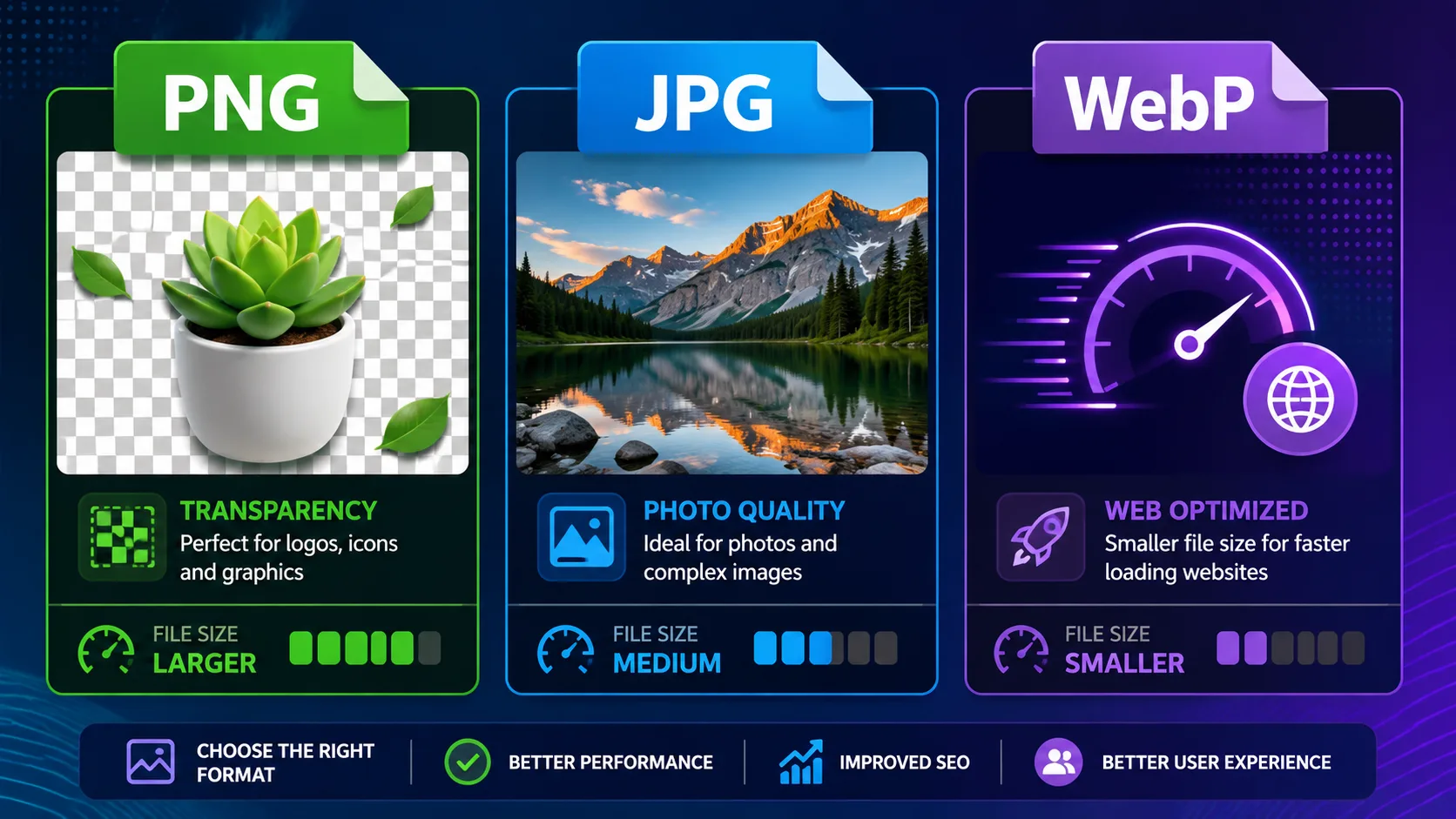
PNG vs JPG vs WebP: Which Image Format Should You Use in 2026?
Table of Contents
PNG vs JPG vs WebP: Which Image Format Should You Use in 2026?
Photo: Pexels
Three formats cover almost every image decision you'll make: JPG for photographs, PNG for graphics and transparency, WebP for anything served on the web. Pick wrong and you either ship files several times larger than necessary or destroy quality that can't be recovered. This guide gives you the decision rules, the measured file-size differences, and the free converters to move between formats without installing anything.
JPG for photographs, PNG for transparency and sharp graphics, WebP for anything served on the web. Google's own compression study measured lossy WebP at 25–34% smaller than comparable JPEG and lossless WebP at 26% smaller than PNG, while still supporting transparency. Convert between any of them free, in your browser, with our PNG→WebP, JPG→WebP, and HEIC→JPG converters.
What's the Difference Between Lossy and Lossless Compression?
Lossy compression permanently discards image data your eye is unlikely to miss; lossless compression rearranges data so the file shrinks but every original pixel can be reconstructed. This single distinction explains nearly every format trade-off: JPG is always lossy, PNG is always lossless, and WebP can be either.
The practical consequence is generation loss. Re-saving a JPG edits-on-edits accumulates artifacts — blockiness around edges, smeared fine detail — because each save throws away more data. The rule professionals follow: keep one lossless master (PNG or the camera original) and export lossy copies for delivery. Never treat a JPG as a working file you'll re-edit ten times.
When Should You Use JPG?
Use JPG for photographs headed anywhere except further editing: email attachments, marketplace listings, documents, and web pages where WebP isn't practical. Photographic content — smooth gradients, natural textures, millions of colors — is exactly what JPG's compression was designed for, which is why a photo saved as JPG is routinely a fraction of the size of the same photo as PNG.
Avoid JPG for text-heavy images, screenshots, and logos. Its compression works in 8×8 pixel blocks, and sharp edges (letters, UI lines, flat color boundaries) produce visible "ringing" artifacts. If you've ever seen a blurry, mushy screenshot in documentation, it was almost certainly saved as JPG — a PNG would have been both sharper and, for that content type, often smaller.
When Should You Use PNG?
Use PNG when you need transparency, pixel-perfect sharpness, or a lossless master file. That covers logos, icons, screenshots, charts, product cutouts from a background remover, and any graphic with text or flat colors. PNG's alpha channel supports 256 levels of transparency, which is why every professional cutout workflow exports PNG.
The cost is size on photographic content: a detailed photo saved as PNG can be 5–10× larger than a visually identical JPG. If someone sends you a 20 MB PNG photograph, converting it with a PNG to JPG converter — or compressing it with an image compressor — recovers most of that space with no visible difference at normal viewing sizes.
Why Two PNGs of the Same Image Can Differ Wildly in Size
PNG's lossless compression exploits repeated patterns — flat colour regions and gradual gradients compress well, but photographic noise and film grain barely compress at all, since there's little repetition for the algorithm to exploit. That's why a simple logo with three flat colours might be 8 KB as a PNG, while a photograph of a forest at the same pixel dimensions is 4 MB. It also explains why PNG-8 (256-colour palette) and PNG-24 (full colour with alpha) can differ by 5–10× on the same source image — PNG-8 is the right choice for simple icons and flat-colour illustrations, PNG-24 is required whenever the image needs smooth gradients or partial transparency.
When Should You Use WebP?
Use WebP for anything you serve on a website. Google's own compression study measured lossy WebP files at 25–34% smaller than JPEGs of equivalent visual quality, and lossless WebP at 26% smaller than PNG (developers.google.com, WebP Compression Study). Since WebP also supports transparency and animation, it effectively replaces both JPG and PNG for web delivery — and it has shipped in every major browser since Safari added support in 2020.
WebP's weakness is everything that isn't a browser. Older photo viewers, some corporate systems, and many print workflows still reject it — which is why "why won't this image open?" usually ends with a WebP to JPG or WebP to PNG conversion.
If your CMS or theme doesn't automatically serve WebP with a JPG/PNG fallback, don't switch every image over blindly — some older email clients and a handful of legacy internal tools still choke on WebP attachments. Convert web-facing images with confidence; keep JPG for anything that might get downloaded, emailed, or printed by someone on older software.
What About HEIC and AVIF?
HEIC is Apple's default photo format since iOS 11 (2017); Apple's stated goal was files roughly half the size of equivalent JPEGs. It's excellent inside the Apple ecosystem and a compatibility headache everywhere else — Windows, Android apps, and most upload forms still expect JPG. When an iPhone photo won't upload somewhere, a HEIC to JPG converter is the one-step fix.
AVIF is the newest web format, built on the AV1 video codec. Netflix's engineering team measured AVIF at roughly half the size of comparable JPEG in its 2020 evaluation, and all major browsers now support it. It's the right choice for high-traffic sites chasing every kilobyte — but encoding is slower and tool support is younger, so WebP remains the pragmatic default for most sites in 2026.
Format Comparison Matrix
| Capability | JPG | PNG | WebP | HEIC | AVIF |
|---|---|---|---|---|---|
| Compression | Lossy | Lossless | Both | Lossy (typ.) | Both |
| Transparency | ❌ | ✅ | ✅ | ✅ | ✅ |
| Animation | ❌ | ❌ | ✅ | Sequences | ✅ |
| Browser support | Universal | Universal | All modern | Safari only | All modern |
| Best for | Photos, email | Graphics, cutouts | Web delivery | iPhone capture | High-traffic web |
File Size at a Glance: A Worked Example
To make the trade-offs concrete, here's the same 1,600 × 1,067 px product photograph saved in each format at a comparable visual quality:
| Format | Mode | Approx. file size | Transparency |
|---|---|---|---|
| PNG-24 | Lossless | 2.4 MB | Yes |
| JPG | Lossy, quality 80 | 210 KB | No |
| WebP | Lossy, quality 80 | 148 KB | Yes |
| AVIF | Lossy, comparable quality | ~105 KB | Yes |
The pattern holds across most photographic content: PNG is roughly 10–15× larger than a well-compressed JPG for the same photo, and WebP shaves another 25–30% off the JPG figure while adding transparency support JPG never had.
How Do You Convert Between Formats Without Losing Quality?
Two rules keep conversions safe. First, convert from the highest-quality source you have — never chain lossy conversions (JPG→WebP→JPG re-compresses twice). Second, going lossless→lossy is a one-way door: keep the PNG master and treat the JPG/WebP output as disposable delivery copies.
All six directions are free in the browser, with no upload limits or watermarks:
- JPG → PNG — when you need a format editors accept for transparency work
- PNG → JPG — shrink photographic PNGs for email and uploads
- JPG → WebP and PNG → WebP — prep images for your website
- WebP → JPG and WebP → PNG — fix "can't open this file" compatibility problems
- HEIC → JPG — make iPhone photos universal
After converting, run large files through the image compressor — format choice and compression level are independent levers, and our image compression guide covers the second one in depth. Need a transparent version of a product shot first? Start with the background remover, and see our white background product photo guide for marketplace-specific export settings.
Converting a JPG to PNG never restores quality that lossy compression already discarded — you'll get a larger file with the exact same compression artefacts baked in. The only way to get a clean, artefact-free master is to re-export from the original camera file or working document, never from a previously-compressed JPG.
How Do Browsers Decide Which Format to Load?
Modern browsers negotiate format automatically through the Accept HTTP header and the HTML <picture> element: a page can offer AVIF, WebP, and JPG fallbacks for the same image, and each visitor's browser silently picks the smallest format it supports. This is why a well-built modern site can serve AVIF to a Chrome user and a JPG fallback to someone on a decade-old browser without either visitor noticing anything different except load time.
<picture>
  <source srcset="photo.avif" type="image/avif">
  <source srcset="photo.webp" type="image/webp">
  <img src="photo.jpg" alt="Description of the photo">
</picture>
You rarely need to write this by hand — most CMS platforms, image CDNs, and frameworks like Next.js generate the equivalent markup automatically once the source images are uploaded. The manual work that actually matters is upstream of this: making sure the source file is a sensible size and not, say, an uncompressed PNG masquerading as a photograph.
A Short History of Why We Have So Many Image Formats
JPEG dates to 1992, designed specifically around how the human eye perceives photographic detail — it remains the universal baseline three decades later because nearly every device on Earth can decode it. PNG arrived in 1996 as a royalty-free, lossless replacement for the patent-encumbered GIF format, adding a full alpha channel GIF never had. WebP launched from Google in 2010, built on the same underlying compression technology as its VP8 video codec, specifically to attack the "images are too heavy for mobile web" problem that JPEG and PNG were never designed to solve. AVIF, built on the AV1 video codec and standardised in 2019, is the newest entrant chasing the same goal with an even more modern compression algorithm. Each generation solved a real problem the previous one couldn't — which is also why none of them has fully retired: JPEG's universal compatibility, PNG's guaranteed losslessness, and WebP/AVIF's superior compression all remain genuinely useful in different contexts.
How to Check an Image's Actual Format and Size Yourself
Never trust a file extension alone — a .jpg file can technically contain PNG data if it was renamed rather than converted, and browser dev tools will show you the real story:
- Open browser DevTools (F12) → Network tab → reload the page → click the image request.
- Check the "Content-Type" response header — it reports the true format (e.g.,
image/webp), regardless of the filename. - Check the transferred size in the Network panel — this is the actual bytes sent over the wire, the number that affects load time.
- Compare against the "used" size shown in the same panel — a large gap between the natural image dimensions and the displayed CSS size means you're shipping more pixels than needed and should resize down.
This five-minute audit on your homepage and top landing pages usually surfaces the single largest, least-optimised image on the site — almost always the highest-leverage fix available.
Which Format Should CMS Platforms Default To?
If you manage a WordPress, Shopify, or custom site, the practical default in 2026 is: store a PNG or high-quality JPG master, and let your CMS or CDN serve WebP (with automatic JPG fallback for the rare visitor on an unsupported browser) at request time. Most modern image CDNs and Next.js's built-in <Image> component already do this content-negotiation automatically — the manual work is making sure the source file you upload is sensibly sized and not itself a bloated PNG masquerading as a photograph.
Frequently Asked Questions
Is WebP better than JPG?
For web delivery, yes: Google's compression study measured lossy WebP at 25–34% smaller than JPEG at equivalent visual quality, and WebP adds transparency support. For email, print, and maximum compatibility with older software, JPG still wins.
Does converting JPG to PNG improve quality?
No. Conversion can never restore data that lossy compression already discarded — a JPG converted to PNG is the same image in a larger container. Convert JPG to PNG only when a workflow requires the PNG format itself, such as adding transparency.
Why do my iPhone photos not upload to websites?
iPhones capture HEIC by default (since iOS 11 in 2017), and many upload forms only accept JPG or PNG. Convert with a free HEIC to JPG converter, or set the iPhone camera to "Most Compatible" in Settings → Camera → Formats.
Which format supports transparent backgrounds?
PNG, WebP, HEIC, and AVIF support transparency; JPG does not. For product cutouts made with a background remover, PNG is the standard delivery format because every design tool accepts it.
What's the best image format for SEO?
Google indexes all common formats equally — what matters for rankings is speed. Smaller files improve Largest Contentful Paint, one of Google's Core Web Vitals, so serving WebP or AVIF instead of oversized JPG/PNG is the practical SEO win. See our image compression and Core Web Vitals guide for the full picture.
Is PNG-8 the same as PNG-24?
No — PNG-8 uses a 256-colour palette (like GIF) and is much smaller, suited to flat-colour icons and simple graphics. PNG-24 stores full 16.7-million-colour images with an alpha channel and is required for photographs, gradients, or partial transparency.
Should I convert my whole website's images to AVIF instead of WebP?
Only if your CMS or CDN already generates AVIF automatically with a WebP/JPG fallback — hand-converting an entire image library to AVIF as a primary format is rarely worth the encoding time versus the marginal size saving over WebP for most sites. Let the platform's content negotiation handle format selection where possible.
Can I batch-convert an entire folder of images at once?
Yes — browser-based converters that accept multiple files let you queue a whole folder and download the results as a batch, which is the practical way to migrate an existing photo library or product catalogue to a new format without converting one image at a time.
Does file format choice matter for print, not just web?
Yes, in the opposite direction from web delivery. Print workflows generally expect high-resolution TIFF or maximum-quality JPG rather than WebP or AVIF, since most print software and commercial printers were built around the older, universally-supported formats. If a file is destined for print, keep a high-quality JPG or TIFF master rather than a web-optimised WebP copy.
- JPG for photographs, PNG for transparency/graphics, WebP for anything served on the web
- Lossy WebP is 25–34% smaller than comparable JPEG and lossless WebP is 26% smaller than PNG (Google)
- PNG is lossless but can be 5–15× larger than a visually identical JPG for photographic content
- Never chain lossy conversions (JPG→WebP→JPG) — always convert from the highest-quality source available
- HEIC (iPhone) and AVIF are gaining ground, but WebP remains the pragmatic default for most sites
Frequently Asked Questions
Our Methodology
All images content on CalculatorApp.me is reviewed by subject-matter experts, cross-referenced with official sources, and updated regularly for accuracy. Our formulas and data are verified against industry standards and government publications.
Jordan Hayes
Verified AuthorPersonal Finance Content Strategist
Jordan is a personal finance content strategist with 9+ years writing about mortgages, retirement, tax strategy, and budgeting. Every guide is cross-referenced with IRS publications, Federal Reserve data, and CFPB guidance to make complex calculations accessible. Editor at CalculatorApp.me.
Found this helpful? Share it!
Stay Updated
Get notified when we launch new calculators and features.
No spam. Unsubscribe anytime.