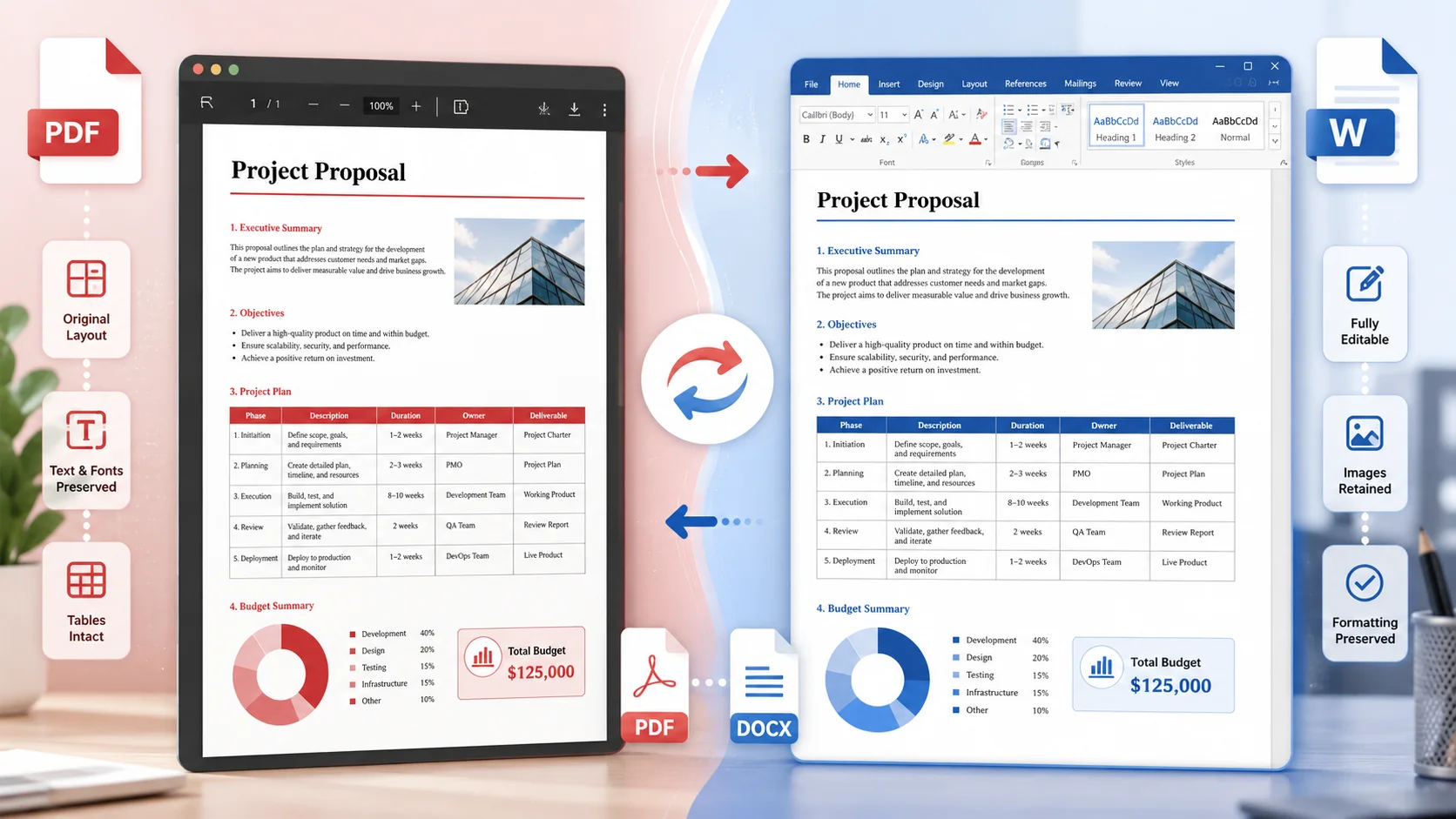
How to Convert PDF to Word Without Losing Formatting (and Back Again)
Free Calculator
Unit Converter
Table of Contents
PDF stores positioned glyphs, not paragraphs — so converting to Word means reconstructing structure the PDF never contained. Text-based business documents convert nearly perfectly with a free PDF to Word converter; heavy multi-column layouts and scanned files need extra steps (run OCR first for scans). For small edits, skip conversion entirely and use a PDF text editor or the full PDF editor directly.
Why PDF-to-Word Conversion Is Genuinely Hard
A Word file stores structure: paragraphs, styles, tables, and flow. A PDF stores the result: each character placed at exact x/y coordinates on a fixed page. Conversion software must infer the structure back — guessing where paragraphs start, which lines form a table, and what's a header versus body text. That inference is why results vary by document type:
| Document type | Conversion fidelity | Notes |
|---|---|---|
| Letters, contracts, reports | Excellent (95–100%) | Single column, standard fonts — converts almost perfectly |
| Résumés / CVs | Very good | Two-column resumes may need minor cleanup |
| Invoices & forms | Good | Table structure usually survives; drawn-line boxes may become floating objects |
| Brochures / magazine layouts | Fair | Multi-column flow and text wrapped around images needs manual fixes |
| Scanned documents | Poor without OCR | There is no text to convert — OCR first, then convert |
Step-by-Step: PDF to Word, Free

- Open the free PDF to Word converter — browser-based, no signup, no watermark.
- Upload your PDF. If it's a scan (you can't select text in a PDF viewer), run it through PDF OCR first.
- Download the .docx and open it in Word, Google Docs, or LibreOffice.
- Skim for the usual suspects: page breaks, table borders, and headers/footers — fix in seconds while the document is fresh.
Keeping Formatting Intact: 5 Rules
1. Check whether you need conversion at all
Fixing a name, a date, or one sentence? A PDF text editor edits in place with zero conversion risk. Adding comments or filling fields? The full PDF editor does it directly. Convert only when you need real paragraph-level rewriting.
2. OCR scans before converting
A scanned PDF is a photograph. Converting it to Word without OCR produces either an empty document or one giant image per page. OCR adds the text layer conversion needs — our scanned-PDF guide covers accuracy tips.
3. Expect font substitution — and standardize
If the PDF embeds a font you don't own, Word substitutes its closest match, shifting line breaks. For documents that will circulate, standardize on universal fonts (Calibri, Arial, Times New Roman, Georgia) after converting.
4. Fix tables immediately after conversion
Tables detected correctly become real Word tables. Tables drawn as lines become text boxes — if a table converts badly, it's often faster to re-insert a Word table and paste the values than to wrestle floating boxes.
5. Convert back to PDF before sending
Word files render differently on different machines; PDFs don't. When editing is done, convert back with Word to PDF so the recipient sees exactly what you approved. Spreadsheets follow the same logic via Excel to PDF.
The Full Round-Trip Workflow
- PDF → Word: convert (OCR first if scanned).
- Edit with full word-processor freedom — rewrite, reflow, restyle.
- Word → PDF: convert back to lock the layout.
- Optional: compress if it will be emailed (see our compression guide), sign it, or password-protect sensitive versions.
Frequently Asked Questions
Is it free to convert PDF to Word?
Yes — the converter is free with no signup, no watermark, and no page limit for typical documents.
Why does my converted Word file look different?
Usually font substitution (the original font isn't installed) or layout inference on multi-column pages. Standardize fonts and check page breaks first — that fixes 80% of visual differences.
Can I convert a scanned PDF to an editable Word file?
Yes: run OCR first to recognize the text, then convert. Accuracy on clean office scans typically exceeds 98%.
Will hyperlinks and images survive conversion?
Images survive reliably. Hyperlinks usually convert; verify critical links after conversion.
Is uploading my contract to an online converter safe?
Use tools that process files over HTTPS and delete them after download rather than storing them. For confidential documents, also consider password-protecting the final PDF.
Should I edit the PDF directly instead of converting?
For small changes, yes — it's faster and risk-free. Our guide to editing PDFs without Acrobat maps every edit type to the right tool.
Related Calculators
Try these free calculators related to this article:
In-Depth Guides
Dive deeper with our comprehensive guides on this topic:
Frequently Asked Questions
Our Methodology
All pdf content on CalculatorApp.me is reviewed by subject-matter experts, cross-referenced with official sources, and updated regularly for accuracy. Our formulas and data are verified against industry standards and government publications.
Jordan Hayes
Verified AuthorPersonal Finance Content Strategist
Jordan is a personal finance content strategist with 9+ years writing about mortgages, retirement, tax strategy, and budgeting. Every guide is cross-referenced with IRS publications, Federal Reserve data, and CFPB guidance to make complex calculations accessible. Editor at CalculatorApp.me.
Found this helpful? Share it!
Stay Updated
Get notified when we launch new calculators and features.
No spam. Unsubscribe anytime.