How to Make a Scanned PDF Searchable: OCR Explained (Free Guide)
Table of Contents
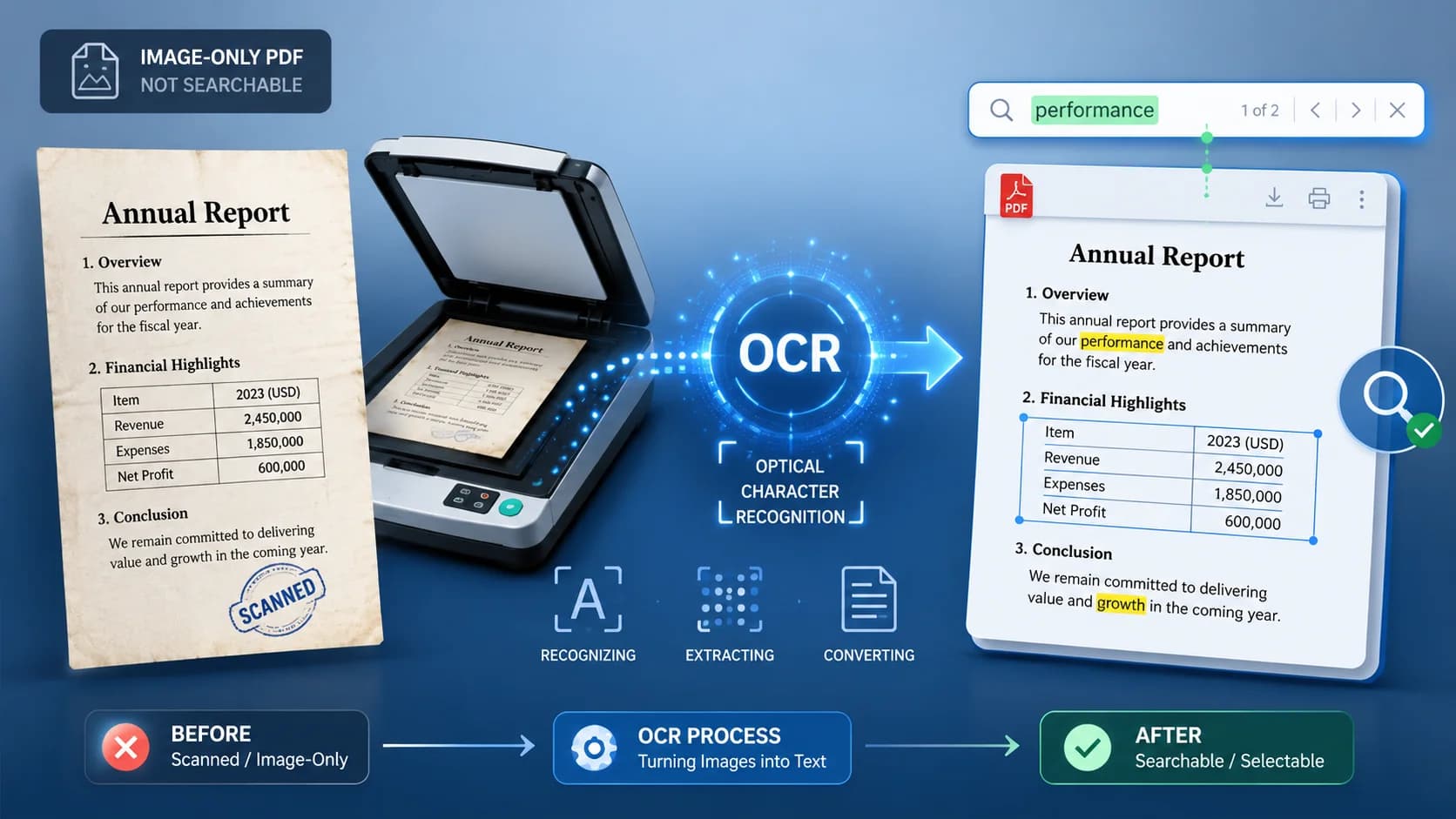
Scanned PDFs contain images of text, not text — which is why Ctrl+F finds nothing. OCR (optical character recognition) analyzes the image and adds an invisible, perfectly aligned text layer, making the document searchable and copyable while looking identical. Free, in the browser, ~98%+ accuracy on clean office scans. After OCR you can convert to Word, edit text, or extract quotes.
Why You Can't Search a Scanned PDF
A PDF can carry two kinds of page content: real text (fonts and character codes — searchable, selectable) and images (pixels). A scanner or phone camera produces only pixels. To your PDF reader, a scanned contract and a photo of a cat are the same kind of object.
Quick diagnosis: open the PDF and try to select a sentence with your cursor. If you can only drag a rectangle instead of highlighting words, it's a scan — OCR is the fix.
How OCR Actually Works
Optical character recognition runs in stages: it straightens and cleans the page image (deskewing), detects text regions and lines, segments them into characters, matches each shape against trained models, and assembles words using language dictionaries to resolve ambiguous shapes (like rn vs m). The output is a text layer placed invisibly behind the original image — the page looks untouched but behaves like real text.
What accuracy should you expect?
| Source material | Typical accuracy |
|---|---|
| Laser-printed document, 300 DPI scan | 98–99.5% |
| Clean phone photo (flat, good light) | 95–98% |
| Old photocopies / faxes | 85–95% |
| Receipts (thermal paper, small fonts) | 80–95% |
| Handwriting | Highly variable — print works, cursive often doesn't |
Step-by-Step: OCR a PDF Free

- Open the free PDF OCR tool in your browser.
- Upload the scanned PDF (or convert photos first with Image to PDF).
- Run OCR — processing takes a few seconds per page.
- Download the searchable PDF. It looks identical; Ctrl+F, copy, and text selection now work.
Scan Settings That Make OCR Nearly Perfect
- 300 DPI is the OCR sweet spot — 200 DPI is acceptable, 150 loses accuracy, 600 wastes megabytes for no gain.
- Grayscale beats color for text documents: better contrast for recognition, smaller files.
- Scan straight. Deskewing handles small angles; 20-degree phone photos lose accuracy. If pages come out sideways, fix them with Rotate PDF before OCR.
- Flatten the paper. Shadows in the gutter of a book and creases in receipts are the top real-world accuracy killers.
What to Do After OCR
- Search & archive: the document is now findable by content — name files well and let search do the rest.
- Edit it: fix names, dates, and amounts with the PDF text editor, or annotate in the full editor — see our editing guide.
- Convert it: need to rewrite whole sections? PDF to Word now works because there's text to convert — full workflow in our conversion guide.
- Shrink it: scans are the most compressible PDFs of all (60–90% reduction) — run Compress PDF after OCR (compression guide).
- Organize it: multi-document scan batches split cleanly with Split PDF (page-management guide).
Frequently Asked Questions
Does OCR change how my document looks?
No. The text layer is invisible, positioned behind the original scan image. Visually the PDF is pixel-identical.
Can I OCR a photo taken with my phone?
Yes. Convert the photo with Image to PDF, then run OCR. Shoot straight-on, in even light, with the page flat.
Does OCR work on handwriting?
Neat block printing often works; cursive handwriting is unreliable with standard OCR. For critical handwritten content, expect to transcribe manually.
What languages does OCR support?
Modern OCR engines support dozens of languages. Accuracy is highest when the document language matches the recognition language.
Is online OCR safe for confidential documents?
Use tools that process over HTTPS and delete files after download. For sensitive results, password-protect the output — see our protection guide.
Why is my OCR'd PDF bigger than the original?
The text layer adds a little weight, but the scan image dominates. Compress after OCR — scans typically shrink dramatically.
Frequently Asked Questions
Our Methodology
All pdf content on CalculatorApp.me is reviewed by subject-matter experts, cross-referenced with official sources, and updated regularly for accuracy. Our formulas and data are verified against industry standards and government publications.
Jordan Hayes
Verified AuthorPersonal Finance Content Strategist
Jordan is a personal finance content strategist with 9+ years writing about mortgages, retirement, tax strategy, and budgeting. Every guide is cross-referenced with IRS publications, Federal Reserve data, and CFPB guidance to make complex calculations accessible. Editor at CalculatorApp.me.
Found this helpful? Share it!
Stay Updated
Get notified when we launch new calculators and features.
No spam. Unsubscribe anytime.