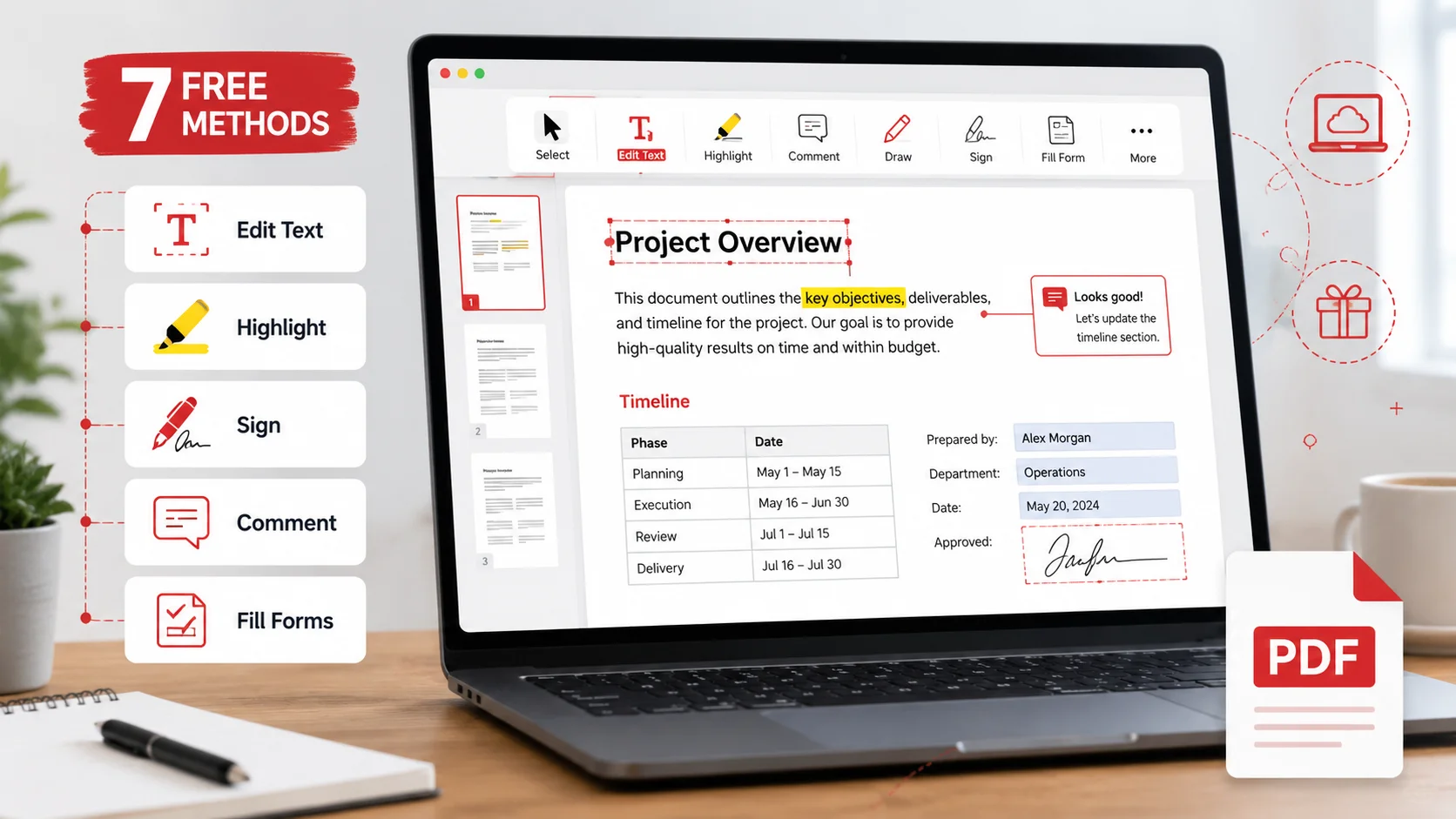
How to Edit a PDF Without Adobe Acrobat: 7 Free Methods That Actually Work
Table of Contents
You don't need Adobe Acrobat ($239/year) for most PDF edits. A free browser-based PDF editor handles text corrections, form filling, signatures, whiteout, and annotations without installing anything. For direct text replacement use a PDF text editor; for scanned documents run OCR first. All methods below are free, watermark-free, and work on Windows, Mac, and mobile.
Why "Editing a PDF" Means Five Different Things
PDF was designed in 1993 as a final-format document standard — a digital printout, not an editable file. That's why "edit a PDF" covers several distinct jobs, each with a different best tool:
| What you want to do | Best free method | Difficulty |
|---|---|---|
| Fix a typo, name, or date in existing text | PDF Text Editor | Easy |
| Add new text, highlights, shapes, or comments | Full PDF Editor | Easy |
| Sign a document | PDF eSignature | Easy |
| Fill out a form | PDF Form Filler | Easy |
| Hide or remove content (whiteout / redact) | PDF Editor — Erase tool | Easy |
| Edit a scanned (photographed) document | PDF OCR first, then edit | Medium |
| Rewrite and reflow whole paragraphs | Convert with PDF to Word, edit, convert back | Medium |
Method 1: Edit PDF Text Directly in Your Browser
The fastest way to correct text in a PDF is click-to-edit replacement. Open the file in a free PDF text editor, click the text you want to change, type the replacement, and download. Modern browser editors detect the original font family, size, weight, and even sample the exact text and background colors so the correction blends in — and automatically shrink the font slightly if your replacement is longer than the original text run.
This works best for short, discrete edits: names, dates, prices, reference numbers, addresses, and one-line corrections. It's the method to use when someone sends you a "final" contract with your name spelled wrong.
When direct text editing hits its limits
PDFs store text as positioned glyph runs, not paragraphs. No tool — including Acrobat — can reflow a multi-line paragraph perfectly when your edit changes its length significantly. For heavy rewriting, use Method 6 (convert to Word) instead.
Method 2: Annotate, Highlight, and Add Text with a Full PDF Editor
A browser-based PDF editor covers everything additive: text boxes, highlights, underlines, strikethrough, shapes, arrows, stamps, freehand drawing, sticky-note comments, and hyperlinks. This is the workhorse for reviewing documents, marking up drafts, and adding information to a file you received.
Good editors also include page management — rotate, reorder, delete, and insert blank pages — so you rarely need a second tool. If you only need page-level changes, the dedicated reorder, rotate, and delete pages tools are even faster.
Method 3: Sign a PDF Electronically

Under the U.S. E-SIGN Act (2000) and EU eIDAS regulation, typed and drawn electronic signatures are legally valid for most business documents. A free PDF signing tool lets you draw, type, or upload your signature, place it precisely, and download the signed file — no Adobe account, no DocuSign subscription for simple use cases.
Method 4: Fill Out PDF Forms
If your PDF has interactive form fields (the cursor changes to a text bar when you hover), a form filler detects them automatically. If the form is flat — just lines and boxes printed on the page — use the PDF editor to place text boxes over each field. After filling, flatten the PDF so your answers can't be accidentally edited by the recipient.
Method 5: White-Out or Redact Content
To hide outdated or sensitive content, use the editor's dedicated Erase (whiteout) tool — it samples the page background color so the patch blends invisibly even on tinted or scanned pages, then place new text on top if needed. For sensitive data, use Redact instead, which draws opaque black boxes.
Important: visual whiteout covers content in the rendered output. For legally sensitive redaction (court filings, FOIA responses), always verify the underlying text is removed — flatten the document and test that the hidden text can't be selected or searched.
Method 6: Convert to Word, Edit Freely, Convert Back
For structural rewriting — changing whole paragraphs, adding sections, reformatting — round-trip through Word: convert with PDF to Word, edit with full word-processor freedom, then convert back with Word to PDF. Layout fidelity is excellent for text-based documents and reasonable for complex layouts. This is what Acrobat's own "Edit PDF" does internally for major edits — you're just doing it explicitly, for free. Full walkthrough: how to convert PDF to Word without losing formatting.
Method 7: OCR a Scanned PDF First
If your PDF is a scan or photo, there is no text to edit — only an image of text. Run it through PDF OCR to add a searchable, selectable text layer first. Then any of the methods above work. OCR accuracy on clean office scans typically exceeds 98%; handwriting and low-resolution faxes are less reliable — our scanned-PDF OCR guide covers scan settings and accuracy in depth.
What About Desktop Alternatives?
LibreOffice Draw (free, open source) can edit simple PDFs but frequently breaks fonts and spacing on professionally typeset documents. Preview on macOS annotates well but can't edit existing text. Word can open PDFs but reformats aggressively. For the 95% of everyday edits, browser tools are faster and don't touch your document's layout — and for the remaining 5%, the Word round-trip beats wrestling with Draw.
Frequently Asked Questions
Is it safe to edit PDFs in an online editor?
Check the tool's privacy policy. Reputable tools process files in memory over HTTPS and delete them after download rather than storing them. Avoid uploading documents with government-ID numbers or medical data to any service that stores files.
Can I edit a PDF for free without watermarks?
Yes. The editor, text editor, signing, and form tools linked in this guide add no watermarks and require no account.
Why can't I select any text in my PDF?
It's a scanned image. Run OCR first to create a selectable text layer, then edit normally.
Will my fonts change when I edit?
Direct text editing preserves standard fonts exactly and substitutes the closest match for embedded proprietary fonts. Overlay text can use a range of embedded fonts (Helvetica, Times, Roboto, Open Sans, Inter, Lato, Poppins, and more).
How do I make my PDF smaller after editing?
Editing can grow file size slightly. Run the result through a PDF compressor — see our full guide on how to compress a PDF for email.
How do I combine several edited PDFs into one?
Use Merge PDF — our guide to merging, splitting, and reordering PDF pages covers the full workflow.
Frequently Asked Questions
Our Methodology
All pdf content on CalculatorApp.me is reviewed by subject-matter experts, cross-referenced with official sources, and updated regularly for accuracy. Our formulas and data are verified against industry standards and government publications.
Jordan Hayes
Verified AuthorPersonal Finance Content Strategist
Jordan is a personal finance content strategist with 9+ years writing about mortgages, retirement, tax strategy, and budgeting. Every guide is cross-referenced with IRS publications, Federal Reserve data, and CFPB guidance to make complex calculations accessible. Editor at CalculatorApp.me.
Found this helpful? Share it!
Stay Updated
Get notified when we launch new calculators and features.
No spam. Unsubscribe anytime.