How to Password Protect a PDF (and What That Protection Actually Does)
Table of Contents
A PDF user password encrypts the file with AES — without the password, the contents are unreadable, not just hidden. Add one free in your browser with the Protect PDF tool. Two rules make it actually secure: use a strong passphrase (12+ characters), and share the password through a different channel than the file (file by email, password by text/call). Owner passwords that merely "restrict printing/copying" are advisory and widely bypassed — rely on the user password.
What Happens When You Password Protect a PDF
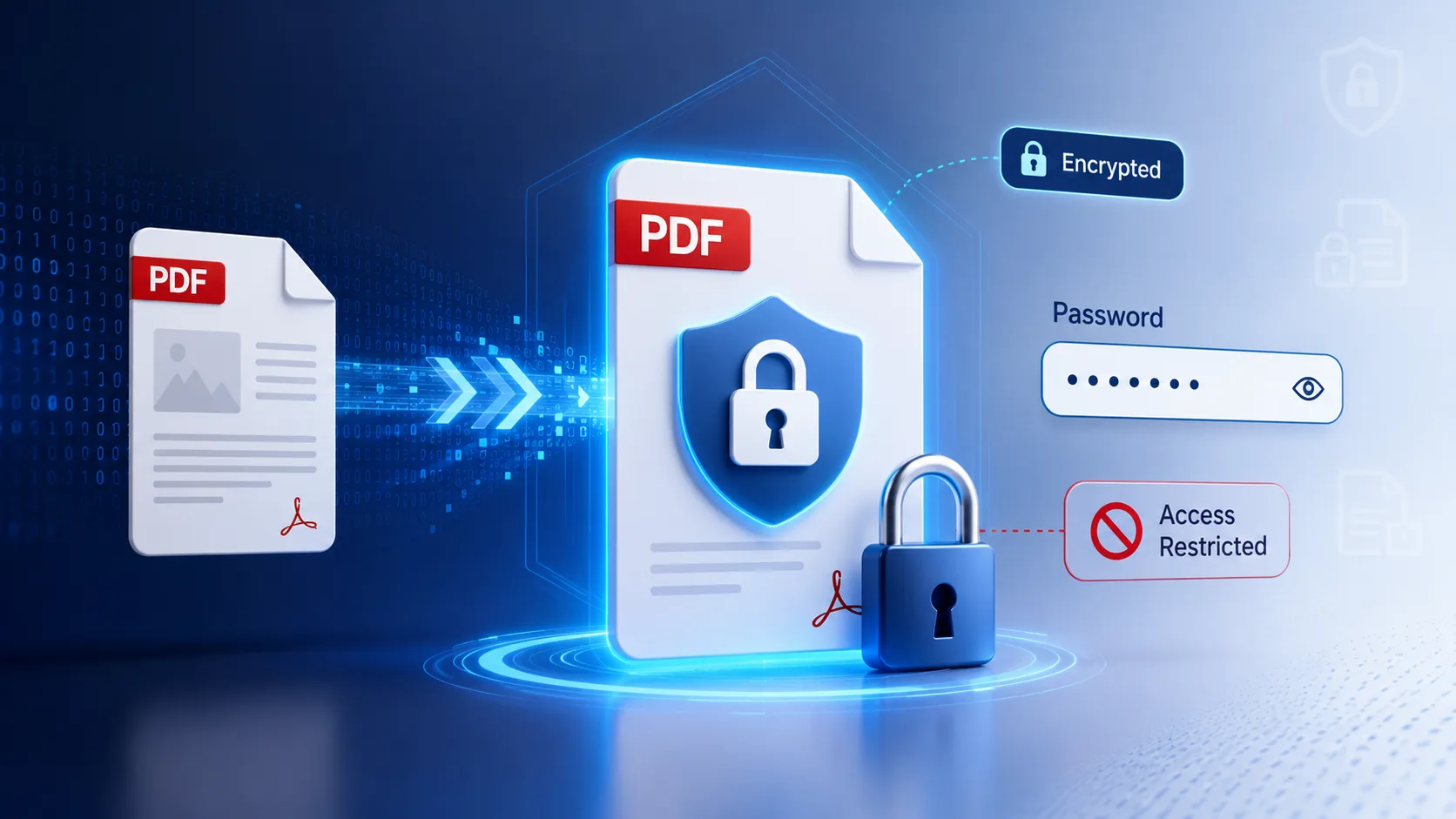
Adding a user password doesn't put a lock screen in front of your document — it encrypts the actual content streams with AES (the same cipher family protecting banking traffic). The text, images, and attachments become ciphertext; the password is the key that decrypts them on open. Without it, the file's contents are mathematically unreadable, even if someone opens the raw bytes in an editor.
User Password vs. Owner Password — The Trap
| User password (open password) | Owner password (permissions) | |
|---|---|---|
| What it does | Encrypts the file — required to open it at all | Sets restriction flags: no printing, no copying, no editing |
| Real security | Strong (with a good passphrase) | Weak — flags are advisory; many viewers ignore them |
| Use for | Confidential content | Signaling intent only — never for actual secrecy |
The takeaway: if the content is sensitive, set a user password. "Copy-protected but opens freely" is a polite request, not protection.
Step-by-Step: Lock a PDF Free

- Open the free Protect PDF tool — browser-based, no account.
- Upload the PDF and choose a strong passphrase: 12+ characters; four random words ("copper-otter-maple-batch") beat "Password2026!".
- Download the encrypted file and test it — open it yourself and confirm the password prompt appears.
- Send the file and the password through separate channels: file by email, password by SMS, call, or messenger.
Before You Lock It: A 3-Point Pre-Flight
1. Scrub the metadata
Encryption protects page content, but careless metadata travels in filenames and title bars. Check and clean author, title, and subject fields with the PDF Metadata tool — especially on documents exported from tracked systems.
2. Flatten filled forms and annotations
If you filled fields or placed a signature, flatten the PDF first so the entries become permanent page content — see also our e-signature legality guide for the signing side.
3. Watermark circulating drafts
For documents that will be forwarded, a visible "Confidential" watermark deters casual re-sharing in a way encryption can't — the two work well together.
What PDF Passwords Can't Do
- Stop the recipient from sharing. Anyone with the password can decrypt, screenshot, or re-save an unprotected copy. Encryption protects data in transit and at rest — not from the people you gave the key to.
- Survive weak passwords. Modern GPUs try billions of guesses per second against short passwords. "1234" on AES is still effectively unprotected — the passphrase is the security.
- Redact content. Blacking out text visually while leaving it in the file is a classic leak. For true removal, use redaction and verify the text is gone (our editing guide covers whiteout vs. redaction).
Removing a Password You Know
Received a protected file and tired of typing the password? If you legitimately know it, unlock tools decrypt the file and save an unprotected copy — useful before archiving or merging protected files (merge and edit tools need unencrypted input). Removing protection from files you're not authorized to open is both technically infeasible with strong passwords and, in most places, illegal.
Frequently Asked Questions
Is it safe to password protect a PDF online?
Use tools that process the file in memory over HTTPS and delete it after download. The password you set is used for encryption and shouldn't be stored by the service.
What encryption do PDF passwords use?
Modern tools use AES (128-bit or 256-bit). Avoid legacy RC4 (pre-2008 PDF encryption) — it's considered broken.
What if I forget the password?
With a strong passphrase, the content is effectively unrecoverable — that's the point of encryption. Keep an unprotected original in your own secure storage.
Can I password protect a PDF for email?
Yes — that's the primary use case. Compress first if it's large (guide), then encrypt, then send file and password separately.
Does protection survive editing or merging?
No — tools need decrypted input. Unlock, edit or organize pages, then re-protect the final version.
Is a password the same as a digital signature?
No. A password controls who can open the file; a signature proves who approved it. For contracts you often want both — sign with the signing tool, then encrypt.
Frequently Asked Questions
Our Methodology
All pdf content on CalculatorApp.me is reviewed by subject-matter experts, cross-referenced with official sources, and updated regularly for accuracy. Our formulas and data are verified against industry standards and government publications.
Jordan Hayes
Verified AuthorPersonal Finance Content Strategist
Jordan is a personal finance content strategist with 9+ years writing about mortgages, retirement, tax strategy, and budgeting. Every guide is cross-referenced with IRS publications, Federal Reserve data, and CFPB guidance to make complex calculations accessible. Editor at CalculatorApp.me.
Found this helpful? Share it!
Stay Updated
Get notified when we launch new calculators and features.
No spam. Unsubscribe anytime.