How to Merge, Split & Reorder PDF Pages: The Complete Organization Guide
Table of Contents
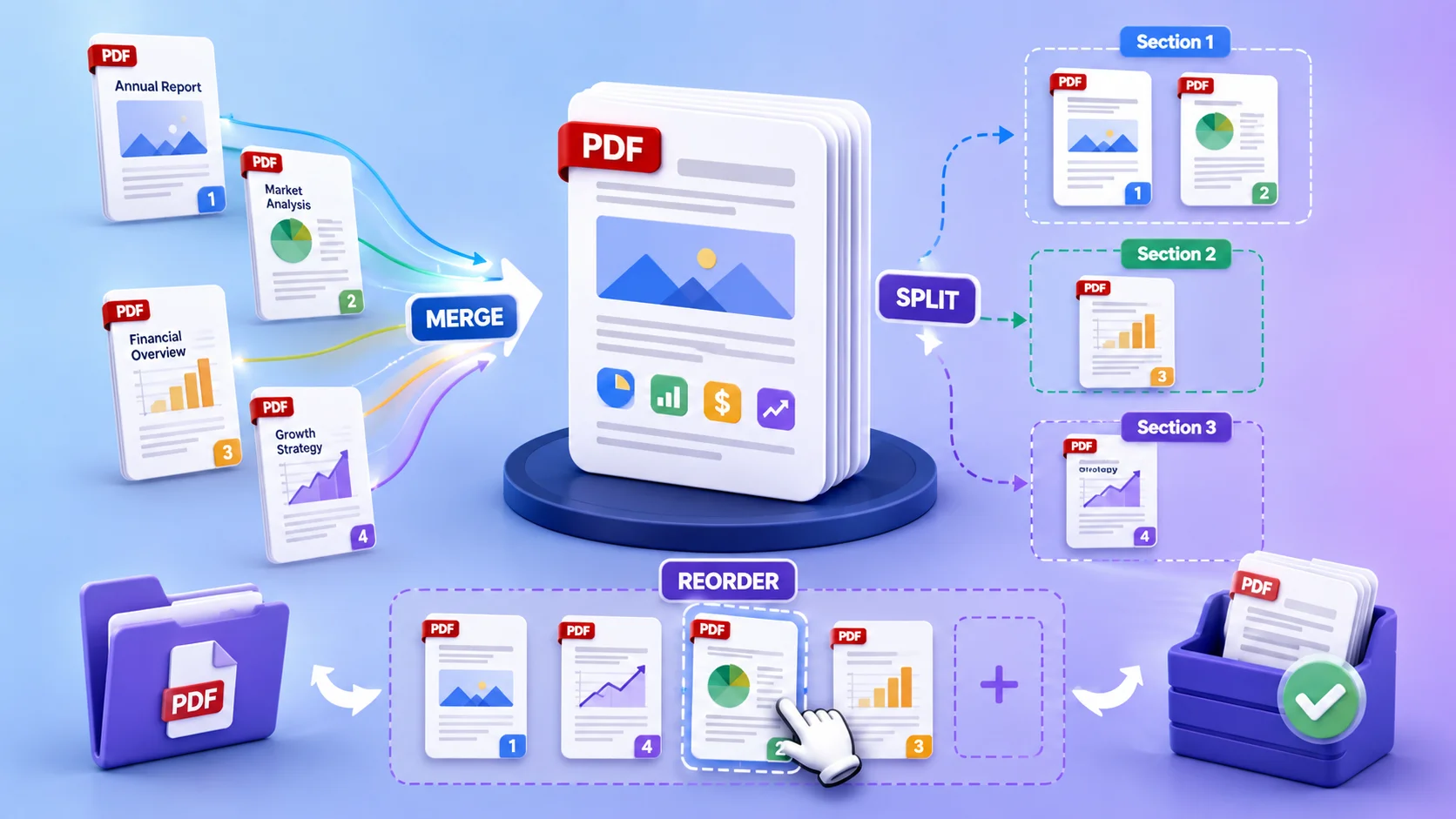
All PDF page management is free in the browser: merge combines files, split divides them, extract pulls out specific pages, delete removes pages, rotate fixes sideways scans, and reorder rearranges page order with drag & drop. Typical job: under 60 seconds, no signup, no watermark.
The Six Page Operations (and When You Need Each)
| Operation | Tool | Typical use |
|---|---|---|
| Merge | Merge PDF | Combine invoice + timesheet + receipts into one attachment |
| Split | Split PDF | Break a 100-page scan batch into separate documents |
| Extract | Extract Pages | Pull pages 12–15 out of a long report to share |
| Delete | Delete Pages | Remove blank backs and cover sheets from scans |
| Rotate | Rotate PDF | Fix pages scanned sideways or upside down |
| Reorder | Reorder Pages | Move the signature page to the end; fix shuffled scans |
How to Merge PDF Files into One

- Open the free Merge PDF tool.
- Upload two or more PDFs — drag and drop, in any order.
- Drag the file thumbnails into the sequence you want; optionally exclude individual pages before merging.
- Click merge and download the combined file.
Merging preserves each document's formatting, fonts, and quality — pages are copied, not re-rendered. Merged file size roughly equals the sum of the parts; if the result is too big to email, run it through the compressor (full guide: how to compress a PDF for email).
Merge use cases we see daily
- Job applications: resume + cover letter + certificates as one clean PDF (many ATS portals accept only one file).
- Expense reports: a dozen receipt PDFs into one attachment.
- Real estate & legal: contract + amendments + exhibits in signing order.
- Coursework: combining exported chapters into one submission.
How to Split a PDF
The Split PDF tool offers the two modes that cover almost every case:
- Split at pages: cut the document at chosen points — e.g., a 30-page scan into pages 1–10, 11–22, 23–30.
- Extract a range: save one continuous range as a new file. (For non-contiguous pages, like 3, 7, and 19, use Extract Pages instead.)
Splitting is also the reliable answer when a portal caps upload size and compression alone can't get you there.
How to Fix Page Order and Orientation
Rotating pages
Scanned sideways or upside down? The Rotate tool turns individual pages or the whole document in 90° steps and saves the orientation permanently — unlike rotating in a viewer, which resets when the file is reopened.
Reordering pages
The Reorder tool shows every page as a thumbnail; drag pages into position and download. Common fixes: moving a signature page to the end, restoring shuffled double-sided scans, and moving an executive summary to the front.
Tip: if you're also editing content, the full PDF editor has page management built into its sidebar — rotate, reorder, insert, and delete without leaving the editor.
Worked Example: Cleaning Up a 30-Page Scan Batch
The scenario from our testing note — one scanned PDF containing two documents with rotation and order problems:
- Rotate: open the file in Rotate PDF, fix pages 7 and 19, download.
- Reorder: load the result into Reorder Pages, drag page 12 to position 1, download.
- Split: open Split PDF, cut at page 23 — you now have the two original documents as separate files.
- Optional cleanup: delete the blank pages the scanner inserted, and compress before emailing.
Total time: about three minutes, entirely in the browser, nothing installed.
Keeping Your Organized PDF Safe
After assembling an important document set: add page numbers so printed copies can be reassembled, apply a watermark ("Draft", "Confidential") if it will circulate, and password-protect files containing personal data before sending (see what PDF passwords actually protect). If your pages came from a scanner, run OCR so the final document is searchable — full details in our scanned-PDF guide.
Frequently Asked Questions
Does merging PDFs reduce quality?
No. Pages are copied at the object level, not re-rendered — text stays vector-sharp and images keep their original resolution.
Can I merge PDFs in a specific page order, not just file order?
Merge the files first, then fine-tune with the Reorder tool — or exclude specific pages during the merge itself.
How do I split every page into a separate file?
Use Split PDF with cut points at every page — you'll get a ZIP of single-page PDFs.
Is there a page or size limit?
The tools handle files up to 100 MB, which covers several hundred typical pages. For bigger jobs, split first, process the parts, and re-merge.
Can I undo a delete or reorder?
Your original file is never modified — every tool produces a new PDF, so the original stays intact on your device.
Can I edit the text after organizing pages?
Yes — pages remain fully editable. See our guide to editing PDFs without Adobe Acrobat for the full toolkit.
Frequently Asked Questions
Our Methodology
All pdf content on CalculatorApp.me is reviewed by subject-matter experts, cross-referenced with official sources, and updated regularly for accuracy. Our formulas and data are verified against industry standards and government publications.
Jordan Hayes
Verified AuthorPersonal Finance Content Strategist
Jordan is a personal finance content strategist with 9+ years writing about mortgages, retirement, tax strategy, and budgeting. Every guide is cross-referenced with IRS publications, Federal Reserve data, and CFPB guidance to make complex calculations accessible. Editor at CalculatorApp.me.
Found this helpful? Share it!
Stay Updated
Get notified when we launch new calculators and features.
No spam. Unsubscribe anytime.